
See every screen in the room. Lock them in one click.
DeskWatch shows teachers the laptops of the class they're teaching right now, follows the timetable through the day, and runs under your school's own name and colours.
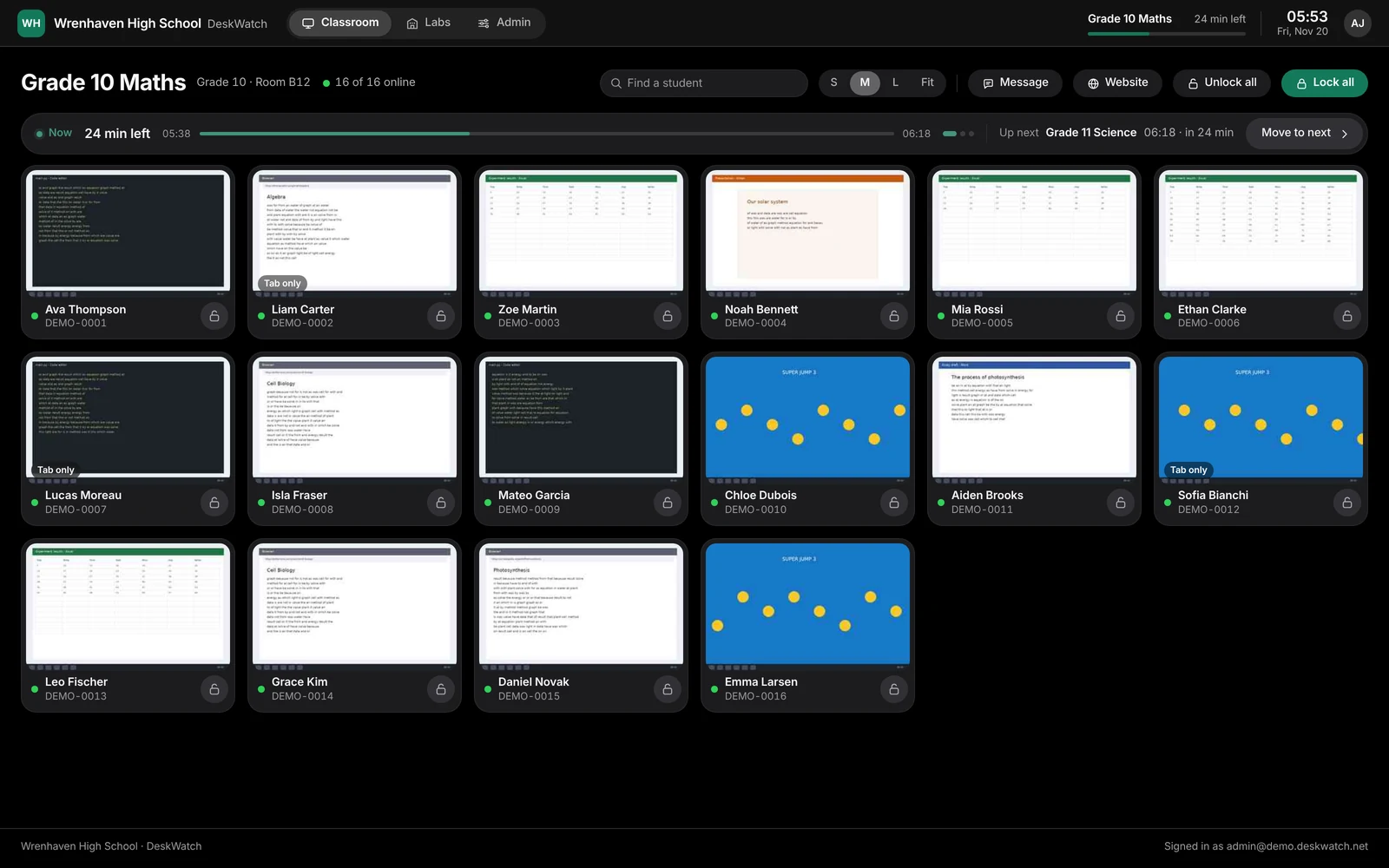
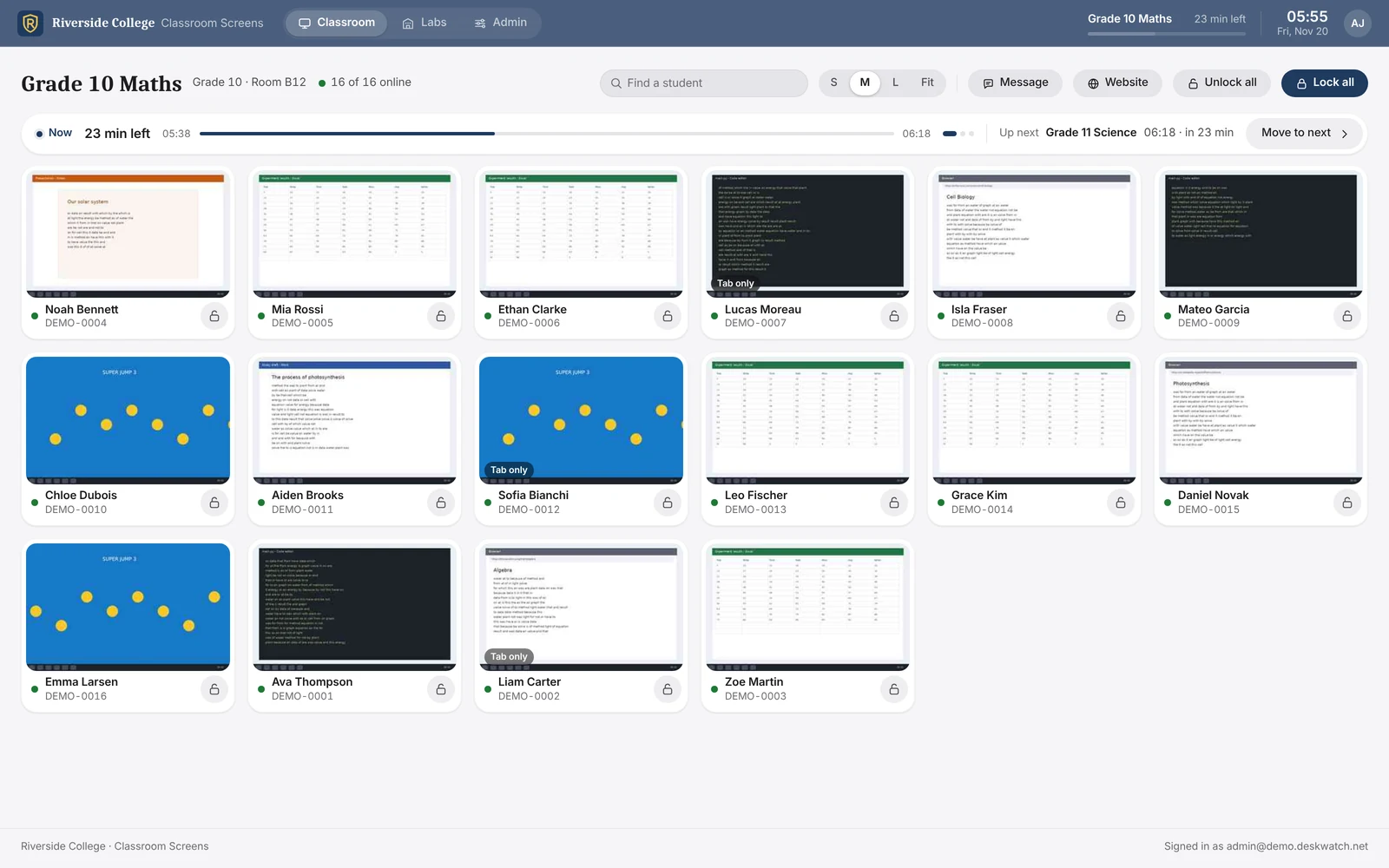
The classroom view during a Grade 10 Maths lesson. Names and screens are sample data.
Made for the lesson, not the IT office
Teachers don't pick devices from a list. They sign in, and their class is already there.
The right class, all day
A slim lesson bar above the screens shows the time left and what's up next. When the next lesson starts, DeskWatch says so and the "Move to…" button becomes the main action. It never switches class on its own.
- Shows only the students in the current lesson
- Countdown to the end of the lesson in the top bar
- Students in several classes appear in each of them

Every screen at a glance
Thumbnails update live throughout the lesson. Each tile shows whose laptop it is, whether it's online, and whether it's locked. One click locks a single laptop or the whole room.
- Find a student by name
- Small, medium or large tiles, or Fit to see the whole class without scrolling
- Offline laptops are greyed out and skipped by Lock all
Labs on demand
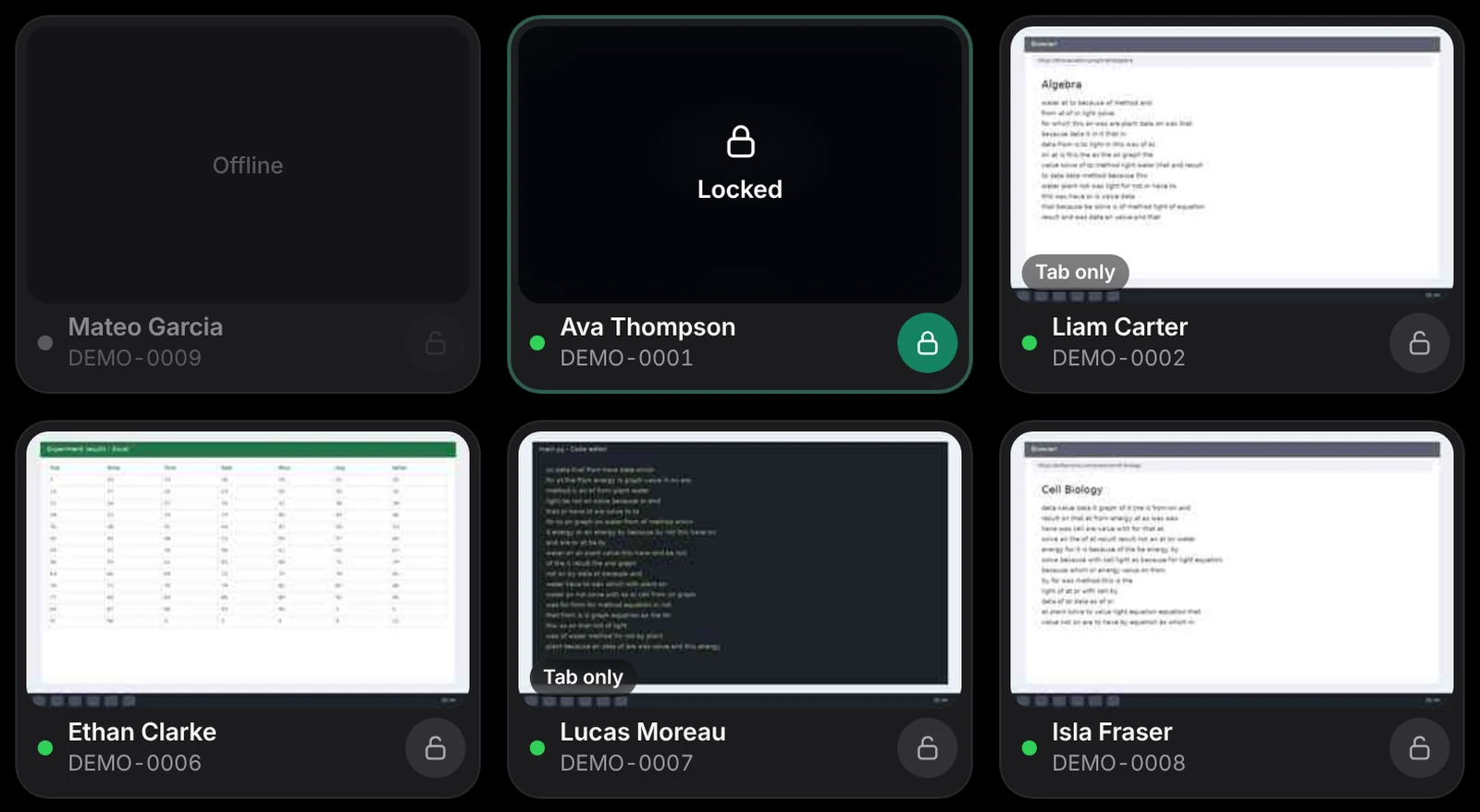
Any teacher can open a computer lab at any time, separate from their timetable. One teacher holds a lab at a time, and the hold ends by itself after an hour (adjustable), so a lab is never left blocked.
- See who's using a lab and until when
- Limit a lab to certain staff, or leave it open to everyone
- Leave early to free it for the next teacher
Boarding houses and the library, with guard rails built in
A boarder's room is their home for the term. DeskWatch lets the staff member on duty keep prep on track and lights-out meaning lights-out, without turning the house into a fishbowl.
Only that house's boarders
Never day pupils, never another house, never a boarder who's signed out on exeat.
Only while they're in the house
Placed by the house's Wi-Fi access points. Walk out to the library and the laptop drops off the wall.
Only in supervision times
Prep, evening, weekends - the times the school sets. Outside them, nothing shows.
Only the staff member on duty
From the duty roster, kept in step with your own system through the API.
The house, on duty
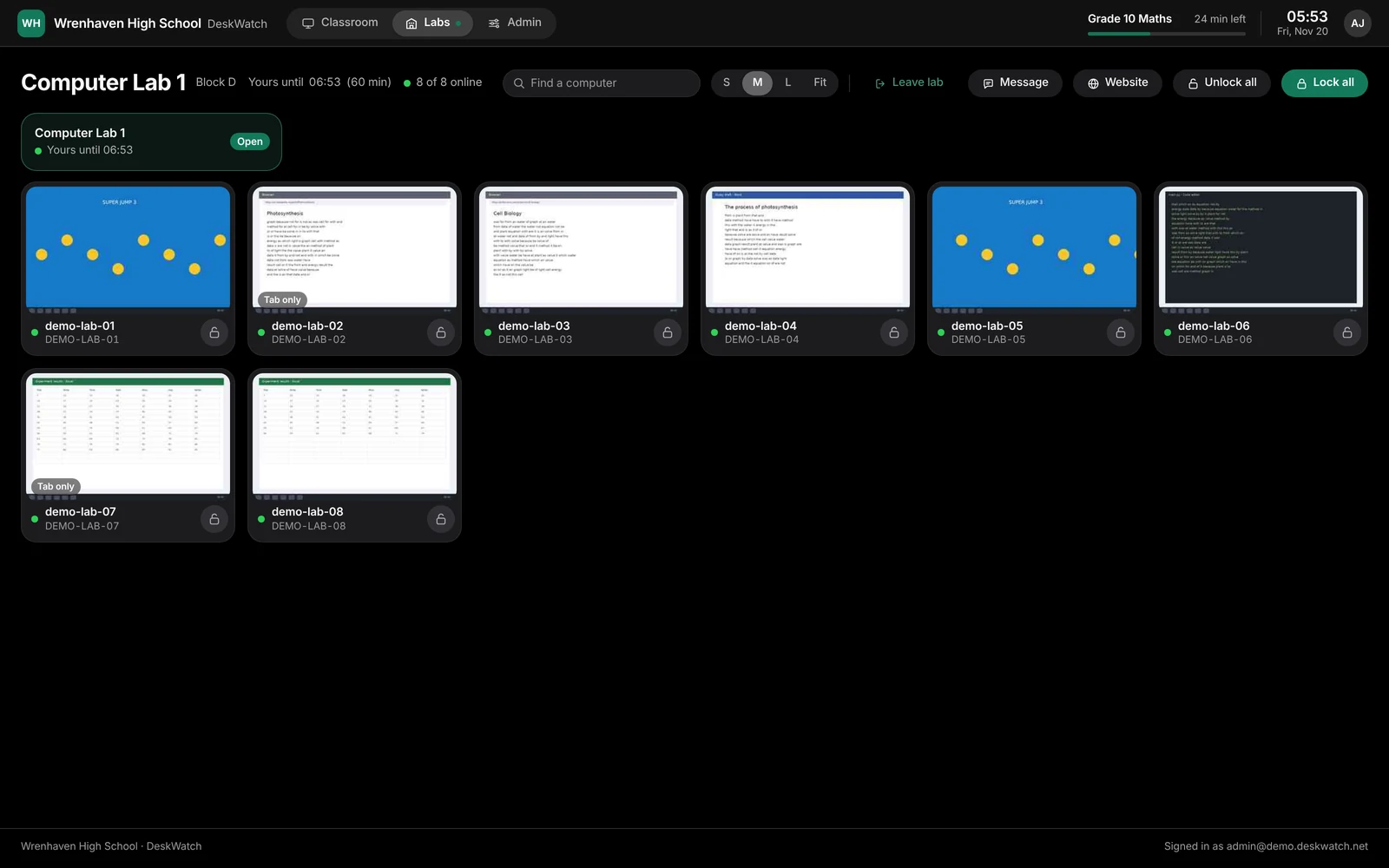
The duty staff member opens the house and sees the boarders who are in it, as the same small tiles as the classroom. Big houses show one floor or wing at a time and move on by themselves, so nobody ever watches hundreds of screens at once.
- All four checks above, on every tile - and inside a house even the admin view can't see a laptop
- At most 200 laptops in a view; sections switch automatically, with Hold and next/previous
- Lock, unlock, message or sign out only the laptops on the wall
Lights-out that means lights-out
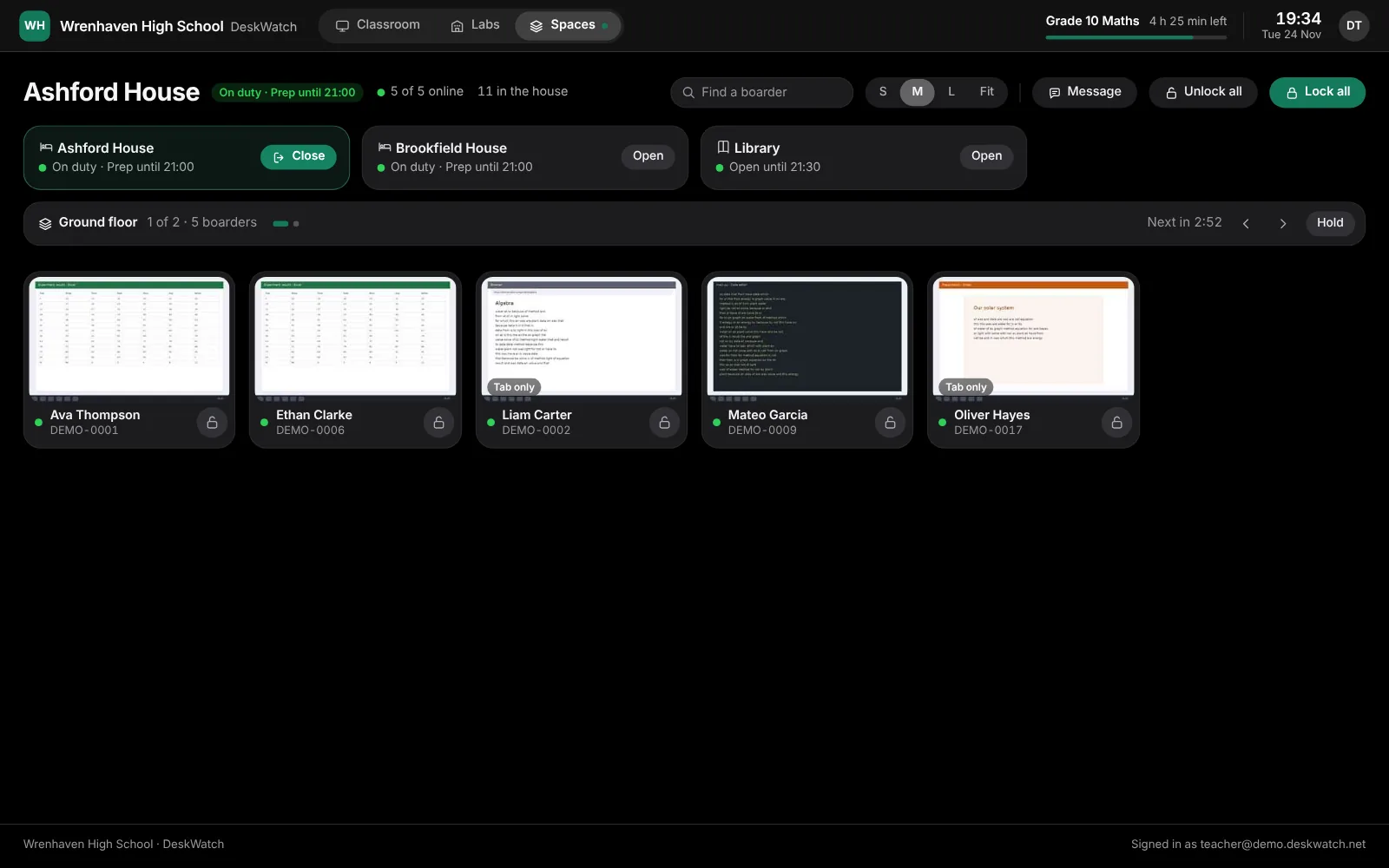
Set lights-out and wake times per grade, for every day of the week. Laptops in the house lock at lights-out and unlock in the morning. If one is unlocked and actually in use ten minutes later, the staff member on duty gets an email - no one needs to sit and watch screens at night.
- Different times for each grade or group, and for weekends
- "5 more minutes" on the lock screen: the first request is logged, any more are emailed to the duty staff
- A Shut down button on the lock screen, so the laptop can go off for the night
- A laptop charging overnight doesn't count as "in use"
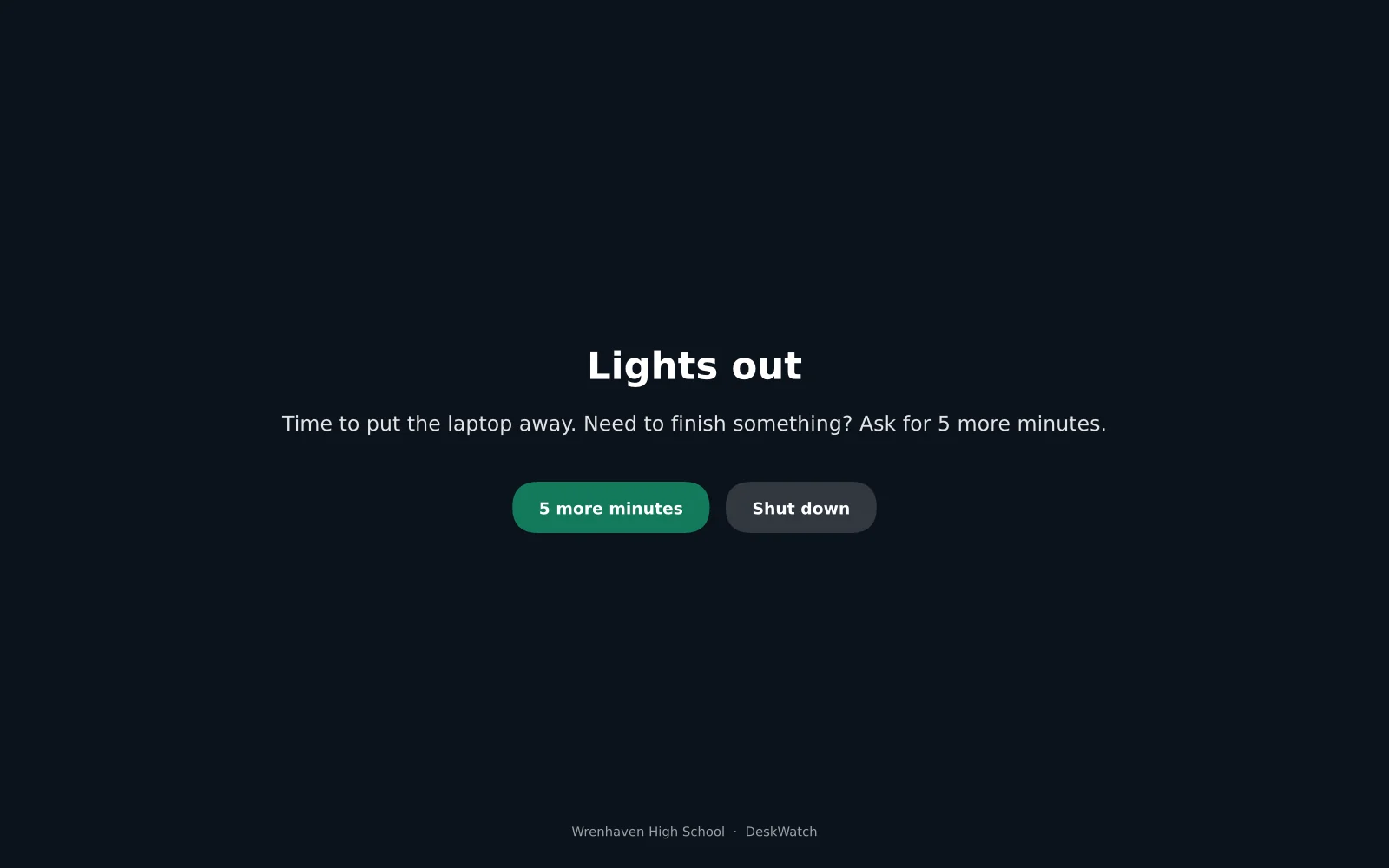
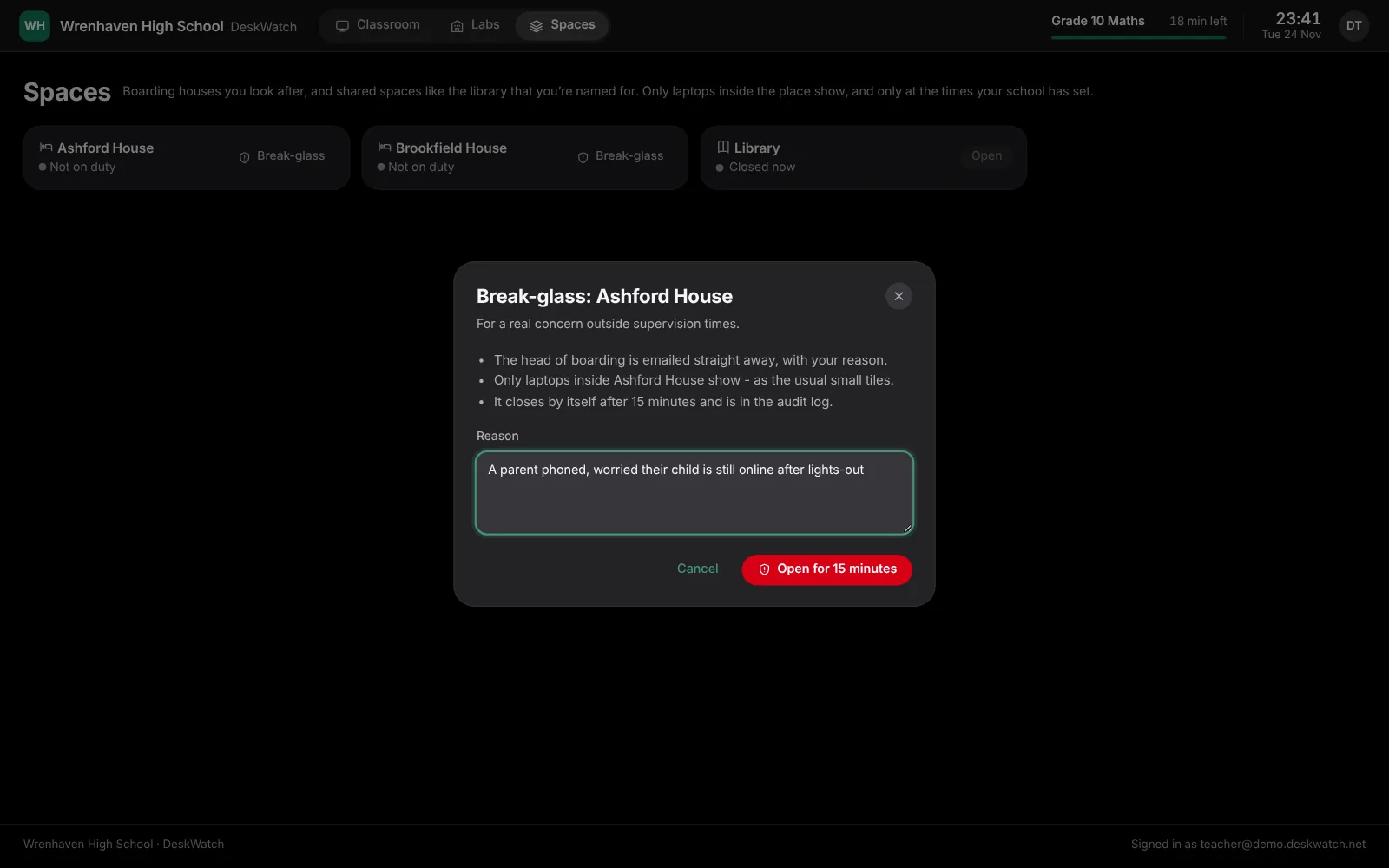
For a real concern at 2am
Outside supervision times, house staff can open their house for 15 minutes - but only after writing why. The head of boarding gets an email straight away, the view closes by itself, and it's still only laptops inside the house.
- Reason required, emailed with the staff member's name
- Its own entry in the audit log, and in the weekly report
- The audit log is always on; emailed reports are your choice
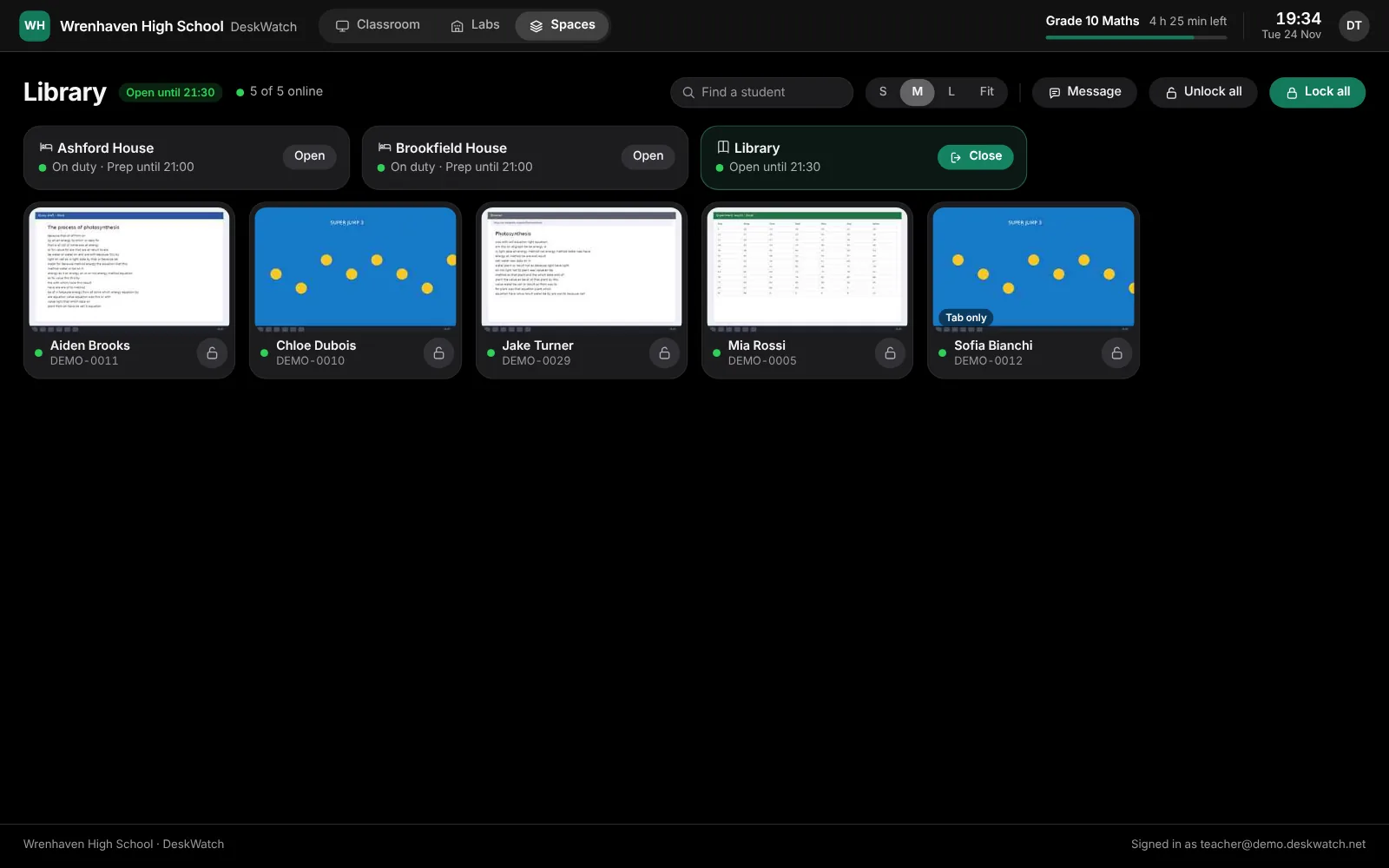
The library, during opening hours
Name the staff for a library or prep room, set its opening hours between 06:00 and 22:00, and they'll see whoever is working there - evening prep and printing included. Every DeskWatch licence includes two shared spaces.
- Anyone on the space's Wi-Fi, while it's open
- Up to 4 access points, 5 staff and 80 laptops per space
- Lock, unlock and message
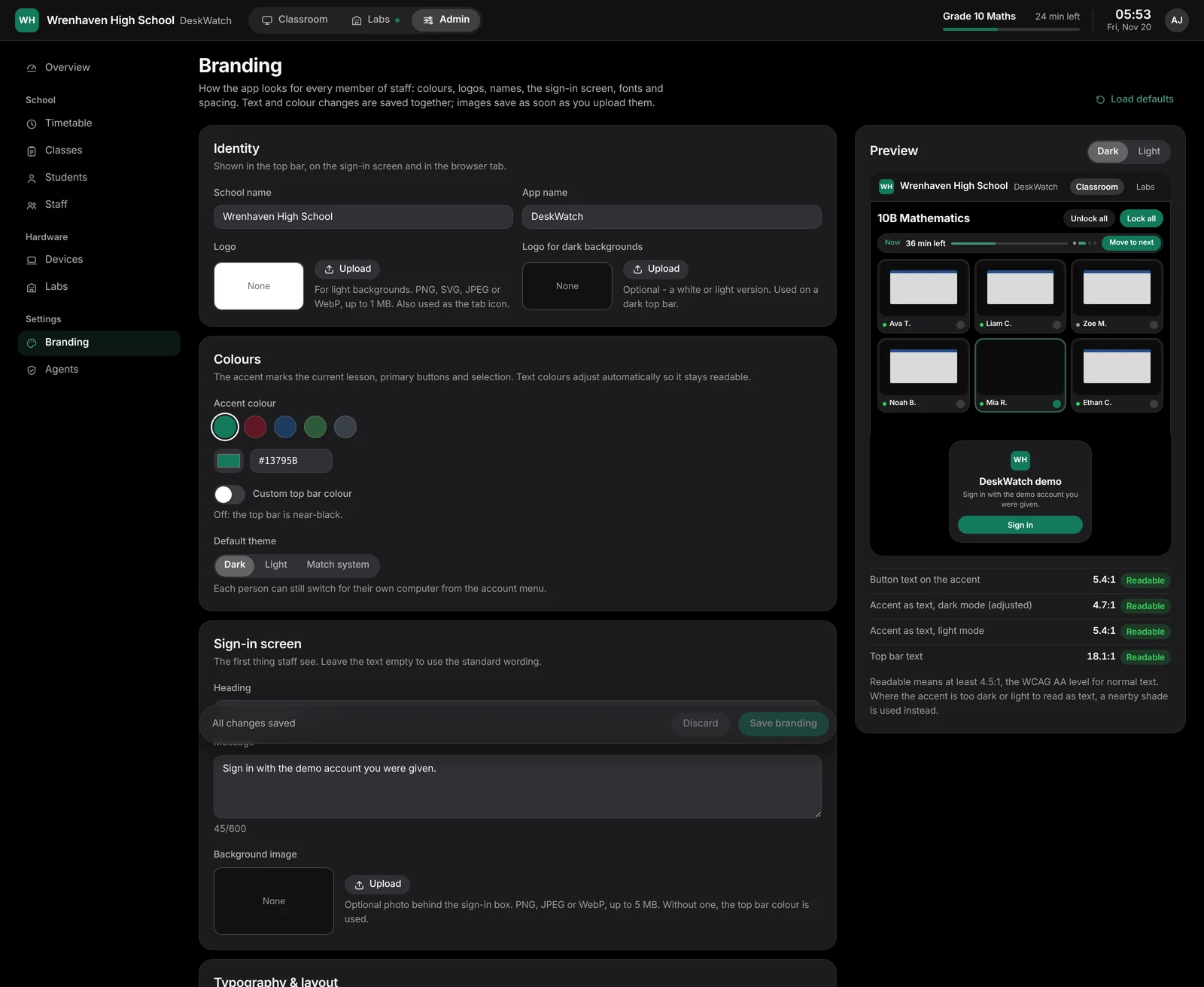
It looks like your school's own app
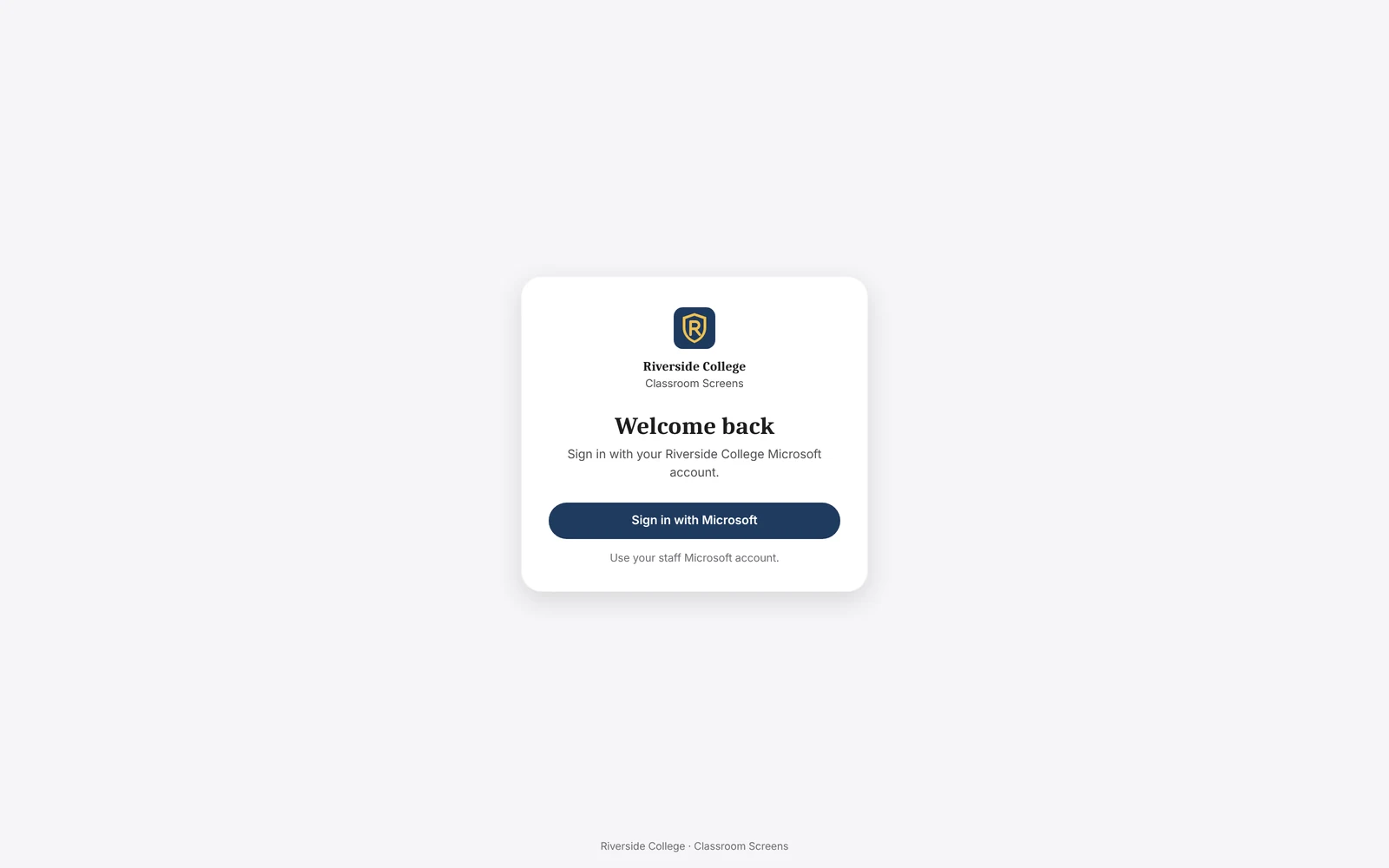
Admins set the look on one page, with a live preview in dark and light. DeskWatch checks that text stays readable and adjusts the accent shade where it needs to.
Everything set up in one place
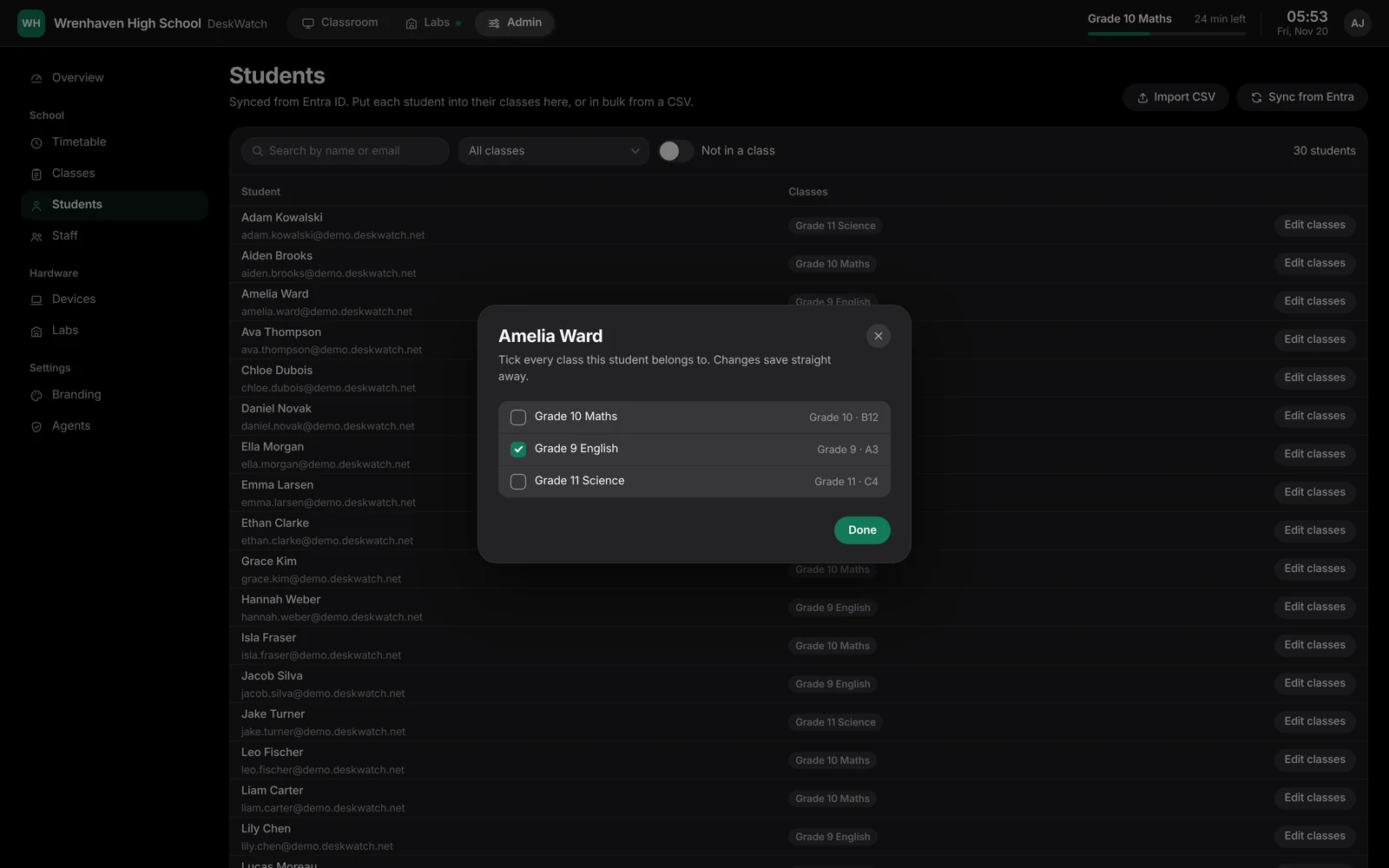
Students and staff come from your Entra ID groups, and laptops from Intune or added by hand. You decide who's in which class, which laptop belongs to whom and which computers make up each lab.
- Teacher timetables, classes and rooms
- Bulk class assignment from a CSV file
- Admin rights for selected staff
- Audit log of locks, unlocks, sign-ins and changes
- Every delete asks for confirmation first
Rolls out with the MDM you already use
The DeskWatch agent installs silently, with nothing for students or teachers to click: an MSI for Windows, a package and configuration profile for Macs, a .deb for Linux and a browser extension for Chromebooks. Roll it out with Intune, Configuration Manager, Google Admin or the MDM you already use.
- With Intune, DeskWatch also keeps its device list up to date: new laptops appear in Admin › Devices by themselves
- Using something else? Add devices in Admin › Devices by serial number and hostname
- The same agent covers personal laptops and shared lab computers
Add the MSI as a line-of-business or Win32 app and assign it to your student device group.
Installs + device syncDeploy it as an application to a device collection.
InstallsAny tool that can install an MSI silently.
InstallsDeploy the package with the DeskWatch configuration profile. Each student allows Screen Recording once, as Apple requires.
InstallsForce-install the DeskWatch extension on managed Chromebooks and paste in the policy. It shares the browser tab only.
InstallsInstall the agent with the tools you already use to manage them.
InstallsKeeps itself up to date
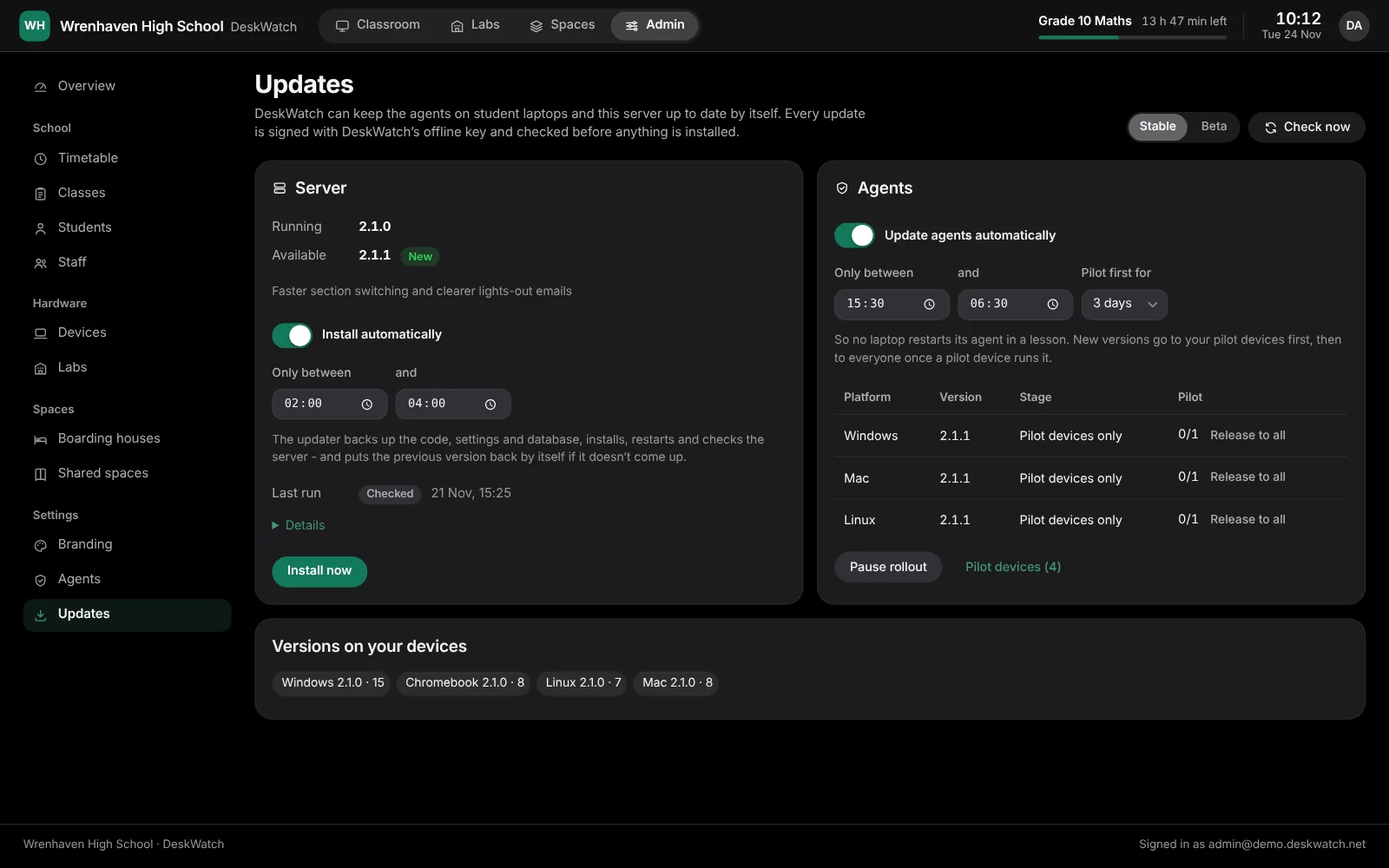
Switch it on and DeskWatch updates the agents on student laptops and the server itself. Every update is signed with DeskWatch's offline key and checked twice before anything runs.
- Agents: your pilot devices first, then everyone - only outside lesson time
- Server: in a night-time window, with a backup first and an automatic rollback if anything goes wrong
- Pause a rollout or install now from Admin › Updates
How much bandwidth will it use?
The agent connects out to your server, so there are no inbound firewall rules, and it only sends screen thumbnails while a teacher has the class open. An unchanged screen isn't sent again. Enter your numbers to see the load on your network.
Estimated load
Supervision, with limits built in
DeskWatch is designed so teachers can keep a lesson on track without becoming a surveillance tool.
Thumbnails only
Screens are shown as small, low-quality previews. There is no full-size view of a student's screen anywhere in the app.
Only your class
Teachers see the students in the lesson they're teaching, or the lab they've opened. Not the whole school.
Microsoft sign-in
Staff sign in with their Microsoft account through Entra ID. DeskWatch never sees or stores a password. Signing out of DeskWatch doesn't sign anyone out of Outlook or Teams.
Everything logged
Locks, unlocks, class changes, lab use and admin changes are written to an audit log, with who did it and when.
Your server, your data
DeskWatch runs on your own server with your own PostgreSQL database, so student and staff data stays with the school. Branding images are kept in that database too, so they're in your normal backups.
Careful with uploads
Logo and background uploads are checked by their actual file content and size-limited. SVG files that contain scripts are refused.
Boarding, by the rules
House, presence, time and duty are checked on the server for every tile. Wi-Fi locations can't overlap, subnets need two admins, and a weekly integrity check flags anything that looks wrong.
Signed updates
Laptops only install updates signed with DeskWatch's offline key - a stolen admin account can't push code to them. The server never runs as root; a separate updater installs and rolls back.
Break-glass, never quietly
An out-of-hours look at a house needs a written reason, emails the head of boarding at once, and ends after 15 minutes.
A yearly licence per member of staff
Everything in DeskWatch, including updates and the library, for each member of staff. Add boarding houses if you have them. Get in touch for pricing for your school.
Per staff member
- 30 student devices for each staff member
- Classrooms, labs, messages, lock and websites
- 2 shared spaces - a library and one more
- Automatic, signed updates
- Your branding, your server, your data
Per house
- Up to 150 boarders in the house
- Up to 6 duty staff for the house
- Supervision times, duty roster and sign-outs
- Lights-out locks, extra-time requests and alerts per grade
- Break-glass and audit reports
Campus
- Unlimited houses
- Unlimited boarders and staff in each house
- Large houses shown a section at a time, switching automatically
- Everything in the per-house plan
Tell us how many staff and boarding houses you have, and we'll send you a quote.
Ask for pricingThree steps to the first lesson
Connect Microsoft 365
Register DeskWatch in Entra ID for staff sign-in, and point it at your student, staff and laptop groups. Rosters and laptops then stay up to date in the background.
Deploy the DeskWatch agent
Assign the agent to student laptops and lab computers in Intune, Google Admin or the MDM you already use. It installs silently and provides the screen thumbnails and the lock. Get the installers.
Add timetables and brand it
Set up classes and teacher timetables, assign laptops to students, and set your colours and logo. Teachers can then simply sign in.
- Sign-in
- Microsoft Entra ID (a single-page app registration)
- Devices
- Windows, Mac, Linux or ChromeOS student laptops and lab computers running the DeskWatch agent
- Deployment
- Intune, Configuration Manager, Group Policy or any tool that can install an MSI. Intune can also keep DeskWatch's device list in sync; otherwise devices are added by hand.
- Server
- A server on your network that runs Python and PostgreSQL, behind your reverse proxy
- Browsers
- Current Edge, Chrome or Firefox on staff computers
- Email (optional)
- An SMTP mailbox (Exchange Online works) for lights-out alerts, break-glass notices and boarding reports
Agent installers
Already running DeskWatch? The easiest place to get the agent is your own server: Admin › Agents › Download installers has the installers that match its version, with the ready-made Intune and Google Admin settings alongside. The latest versions are also here.
Windows agent
MSI installer for Intune, Configuration Manager or Group Policy.
Request the installerMac agent
Installer package and configuration profile for Jamf, Mosyle, Kandji or Intune.
Request the installerLinux agent
Debian / Ubuntu package for lab computers and student laptops (X11).
Download 2.1.0 (.deb)Chrome extension
For Chromebooks, force-installed from the Google Admin console. The zip is for testing or self-hosting.
Download 2.1.0 (.zip)Installers don't contain any school's settings: the server address and an enrolment key from your DeskWatch admin page are given when you install, so a downloaded installer can't join anyone's DeskWatch on its own.
Frequently asked
Can a teacher open a student's screen at full size?
No. Screens only ever appear as small, low-quality thumbnails, and there's deliberately no way to enlarge one.
Does DeskWatch move teachers to their next class automatically?
No. It tells the teacher when the next lesson has started and makes "Move to…" the main button, but the teacher decides when to switch.
Do we need Intune?
No. Any MDM or deployment tool that can install an MSI can roll out the agent, including Configuration Manager and Group Policy. Intune adds one extra: DeskWatch keeps its device list in sync with it, so new laptops appear by themselves. Without it, admins add devices by serial number and hostname.
How much network bandwidth does DeskWatch use?
Very little. A watched laptop sends a small thumbnail at most once a second, and only when its screen has changed, which typically comes to 20–50 kbit/s. Laptops nobody is watching use about 0.25 kbit/s to stay connected. Try the bandwidth calculator with your own numbers.
Does it work on Macs or Chromebooks?
Yes. Macs run the DeskWatch agent (each student allows Screen Recording once, as Apple requires), and Chromebooks use the DeskWatch extension, force-installed from the Google Admin console. On a Chromebook only the browser tab is shared.
Can each teacher choose dark or light mode?
Yes. Admins pick the school default, and anyone can choose dark or light for their own computer from the account menu.
What happens if a teacher forgets to leave a lab?
The hold ends by itself after an hour (you can change the length), so the lab is free for the next teacher.
Can house staff see boarders' screens at night?
Only during the supervision times your school sets, only when they're on the duty roster, and only for their own house's boarders while they're in the house. After lights-out DeskWatch locks laptops and emails the duty staff if one is in use - it doesn't ask anyone to watch. A real concern at night needs break-glass: a written reason, an email to the head of boarding, and 15 minutes.
Why can't we just use the library feature for the boarding houses?
Shared spaces are for rooms like the library during the day and evening: they close by 22:00, cover up to four access points, show at most 80 laptops and have no lights-out, rosters or break-glass. Supervising a house in the evening and at night is what the boarding add-on is for.
How do automatic updates work?
Once switched on, new agent versions go to a few pilot laptops first and then everyone, only outside lesson time. Server updates install in a night-time window after a full backup, and roll back by themselves if the new version doesn't start. Everything is signed with DeskWatch's offline key.
Where is our data stored?
In your own PostgreSQL database on your own server. DeskWatch doesn't send student or staff data anywhere else.
See DeskWatch with your own timetable
We'll walk you through a demo and talk through what your school needs.
Request a demo